
Getting Started
Exploring the main window
A tour of the TimeBill sidebar, the detail pane, and the separate windows for the Invoice Vault, Customer Management, and the floating timer.
Last updated
TimeBill's main window is split in two: a sidebar on the left and a detail pane on the right. This tour names every element, so the rest of the help center is easier to follow.
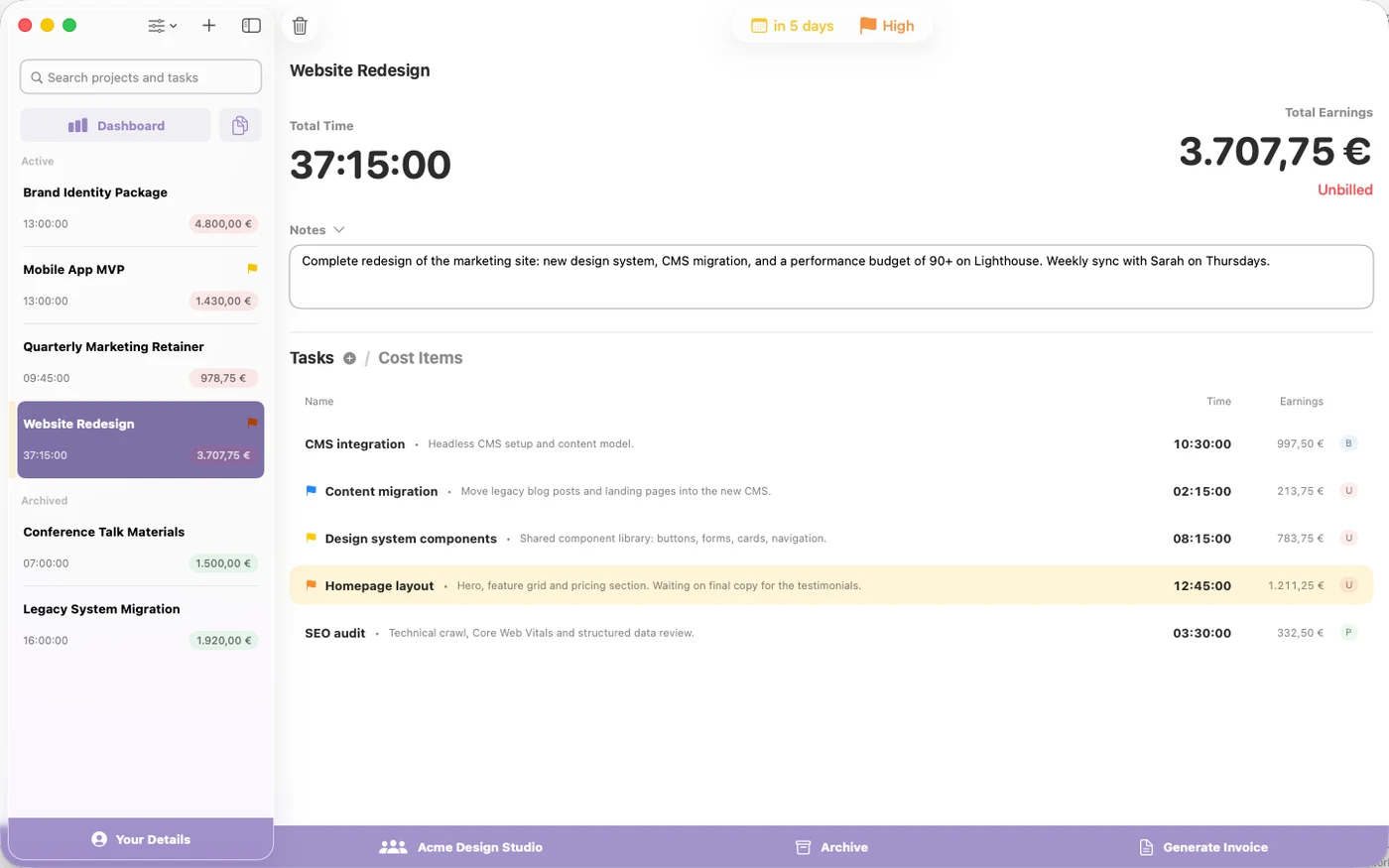
The sidebar
From top to bottom:
- Search field (Search projects and tasks) searches the names and notes of all projects and tasks. See search, filters, and sorting.
- Dashboard: opens the statistics view in the detail pane.
- Invoice Vault: the icon button next to Dashboard opens the archive of all exported invoices in its own window.
- Project list: your projects, grouped into two collapsible sections: Active and Archived. A colored bar on the left edge of a row signals an approaching deadline; it only appears on active projects that are not yet billed or paid.
- Your Details: the full-width button at the bottom opens the sheet where you edit your company details for invoicing.
The sidebar toolbar holds two buttons: View Options, a menu for filtering the project list (by Billing Status, Deadline Status, or Priority) with a Sort submenu, and Add Project (+) for creating a new project.
If you have no projects at all yet, the sidebar shows an empty state inviting you to create a new project or import existing ones.
The detail pane
The right side shows one of three things:
- The Dashboard with weekly charts and quick stats.
- The detail view of the project selected in the sidebar. Selecting a project hides the Dashboard; click Dashboard to bring it back.
- A No Project Selected placeholder ("Select a project from the sidebar or create a new one to get started") with a New Project button.
Separate windows
Some features live in their own windows:
- Invoice Vault (View → Invoice Vault, Shift-Cmd-I, or the sidebar button) is one global window listing every archived invoice across all projects; opening it from a project's footer button pre-filters it to that project. See the Invoice Vault.
- Customer Management (View → Customer Management, Shift-Cmd-M) is the client address book used for invoicing.
- Floating timer: a small, distraction-free window showing a single task's timer, opened per task from the main window. Closing it automatically brings the main window back.
Where are the settings?
TimeBill has no macOS Settings window, so pressing Cmd-, does nothing. That's expected. All configuration (company information, logo, invoice templates, electronic invoicing, payment details) lives in the Your Details sheet, described in setting up your company details.
For the full list of menu commands and shortcuts, see menus and keyboard shortcuts.