
Invoicing
Creating your first invoice
Generate a PDF invoice from a project with the Generate Invoice sheet: invoice number, dates, tax, notes, and what happens after you export.
Last updated
TimeBill builds invoices directly from a project: its tracked time, cost items, and assigned customer become the line items automatically. You never type line items by hand.
Before you start
The Generate Invoice button in the project footer is disabled until two things are true:
- A customer is assigned to the project; otherwise you'll see the hint "Assign a customer first" (how to assign one).
- Your company details are filled in; otherwise the hint reads "Set up your company details first" (set them up here).
Generate the invoice
- Open the project and click Generate Invoice in the footer.
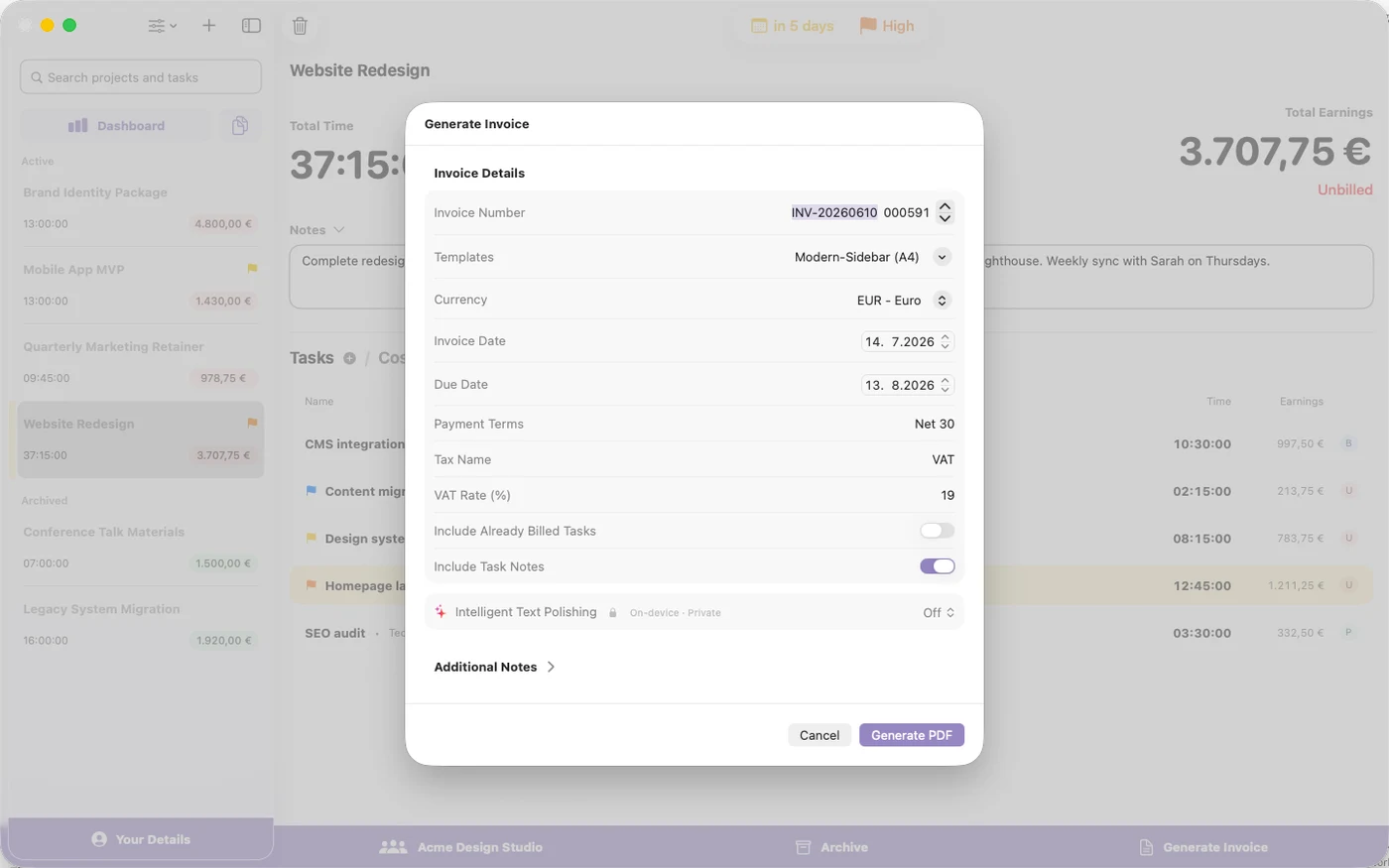
- Review the Invoice Details form:
- Invoice Number: an editable prefix (default
INV-YYYYMMDD-) plus a 6-digit counter that increments automatically after every export. - Templates: pick a layout, or open Edit Templates… (more on templates).
- Currency: all ISO currencies; your choice is remembered as the default.
- Invoice Date and Due Date (default: 30 days out).
- Payment Terms (default "Net 30", saved as your default when you edit it), Tax Name (default "Tax"), and the tax Rate (%).
- Invoice Number: an editable prefix (default
- Check the toggles: Include Already Billed Tasks re-bills tasks that are already on earlier invoices (leave it off unless you are re-issuing, as it can double-bill), and Include Task Notes prints your task notes on the invoice.
- Optionally expand Additional Notes and type text for the bottom of the invoice; flip Save as Default to reuse it on future invoices. If you are VAT-exempt as a small business, put your exemption sentence here: it is not printed on the PDF automatically, even with the exemption toggle on (details).
- Click the export button. It reads Generate PDF normally, or Generate ZUGFeRD PDF / Generate Factur-X PDF / Generate XRechnung XML if you use electronic invoicing.
- First time only: the Before your first invoice disclaimer appears. Tick I understand and will verify all invoice details before sending and click Continue.
What happens after export
There is no save dialog. The finished invoice is archived automatically and the Invoice Vault opens with it selected. Use Share, Re-export, or Print from there to get the file to your client.
At the same time, all unbilled tasks on the invoice flip to billed (using the Invoice Date you entered, not today's date), and the invoice counter increments by one.
Good to know
- Line items are built at export time: hourly projects list each task with tracked time, fixed-price projects bill one lump-sum line, and cost items become counted lines. Quantities and prices are rounded to 2 decimals (half-up), so the total is the sum of already-rounded lines.
- On Macs where Apple Intelligence is available, the sheet shows an Intelligent Text Polishing row ("On-device · Private"). Set it to Proofread or Professional to tidy your customer-facing text before export; with Review changes before exporting on, you approve every change in a before/after sheet and can Revert any field. Numbers, dates, and amounts are never altered, and nothing leaves your Mac.
- On the free plan, every invoice PDF carries a small "Generated with TimeBill for macOS" watermark; Premium removes it.
- If the export button stays disabled, see The Generate Invoice button is disabled.